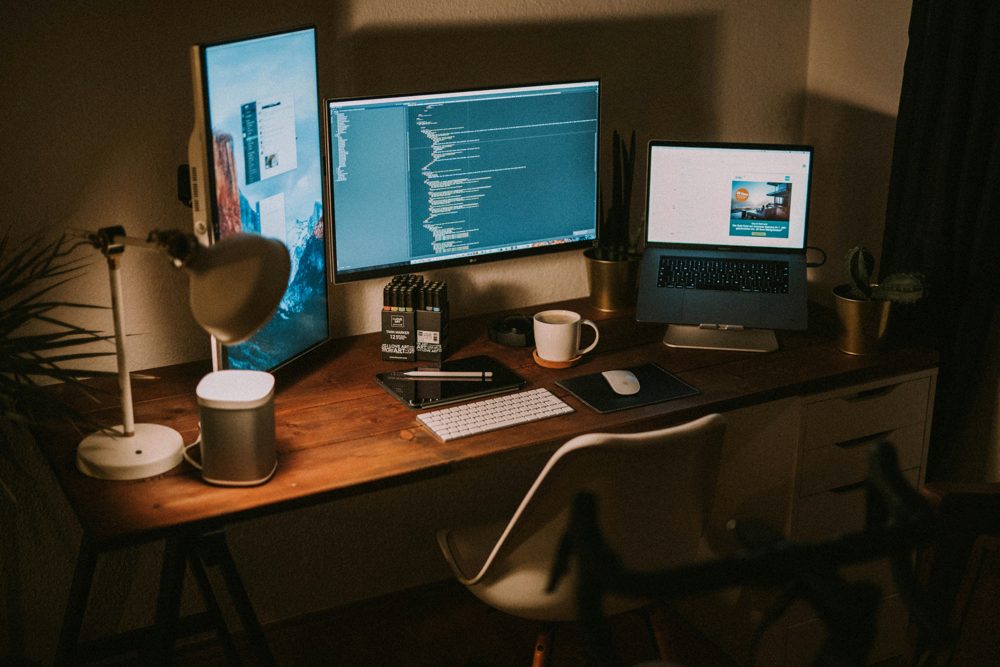
Two screens can make multitasking much easier, but a dual setup needs more than a second monitor. Desk space, ports, cables and mounts all matter. This guide walks through what to check before you buy, so everything works the first time you plug it in.
Check your computer first
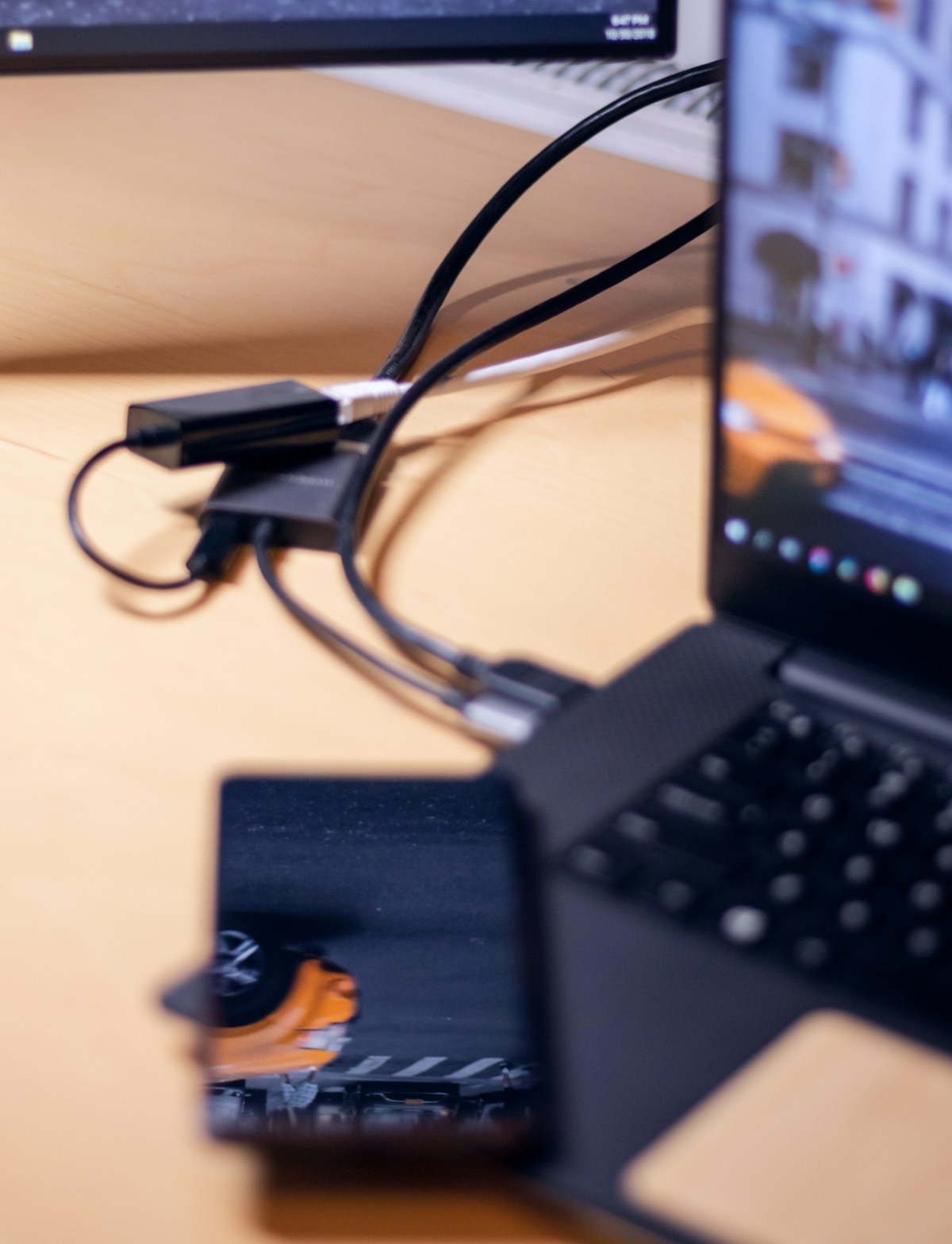
Look at the ports on your laptop or computer. Common video outputs are HDMI, DisplayPort and USB-C with video support. Count how many you have and what type. If your computer has only one video port, you may need a USB-C hub or a docking station to drive two screens. Check the maker's specifications for the number of external displays supported.
Choose matching monitors
Two monitors of the same size and resolution look better and are easier to work with, since windows keep their size as you move them. Common sizes are 24 and 27 inches. If you must mix, put the larger one in the center as the main screen. Check the resolution, and note that a higher resolution gives sharper text but needs a compatible cable.
Cables
HDMI is widely supported. DisplayPort is common on monitors and handles higher refresh rates. USB-C can carry video, data and sometimes power through one cable. Check that your cable supports the resolution and refresh rate of your monitor, because an older cable may limit it.
Desk space and depth
Measure your desk. Two 24-inch monitors side by side need about 42 to 44 inches of width, and two 27-inch ones need roughly 49 to 52 inches. Depth matters too, since you want the screens an arm's length from your eyes. A shallow desk makes this hard.
Stands, risers and arms
- Stands that come with the monitors take up desk space.
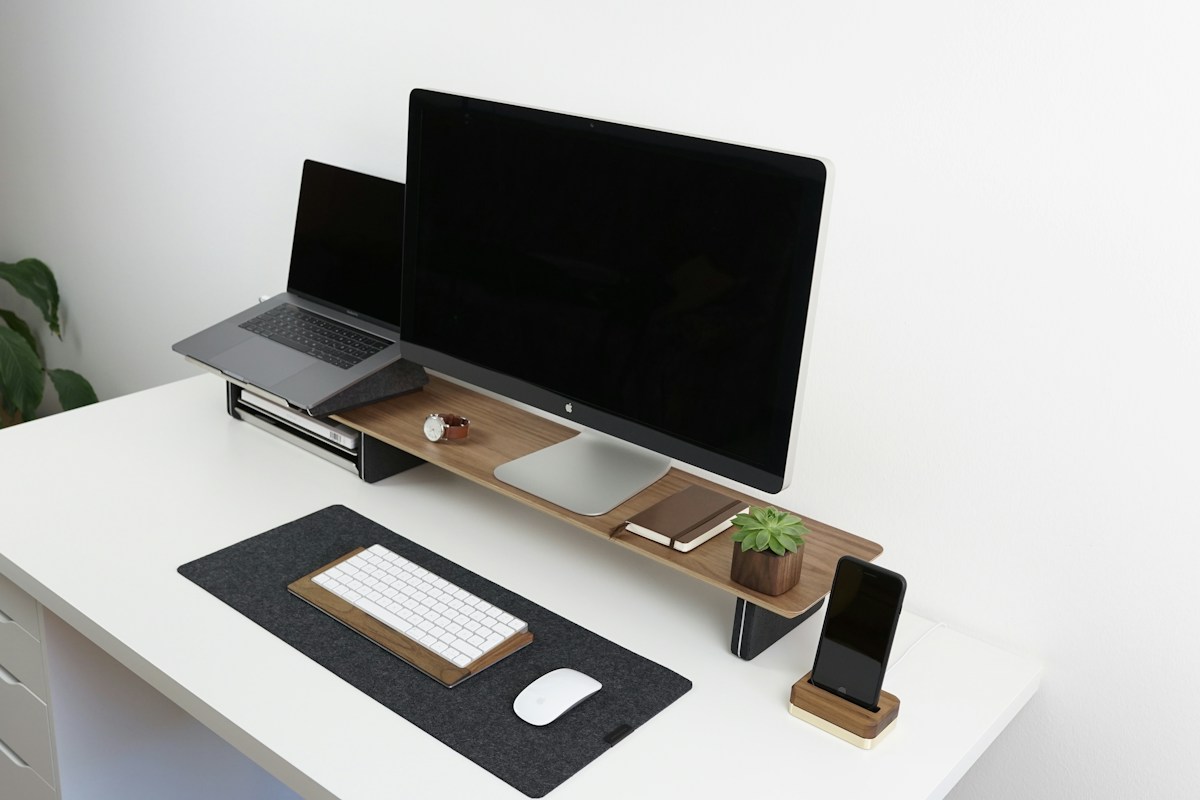
- A monitor riser shelf lifts screens and lets you store a keyboard underneath.
- A dual monitor arm clamps to the desk and frees space, but check weight limits and compatibility with your screens' mounting pattern.
Set the height and angle
The top of each screen should be at or slightly below eye level. Angle the monitors slightly toward you if you use both equally. If one is a main screen, center it and place the second to the side.
Software settings
Your operating system lets you arrange displays so your cursor moves smoothly between them. Set the main display, match scaling and drag the layout until it matches your desk. Make sure both screens use the same refresh rate if possible.
Tidy the cables
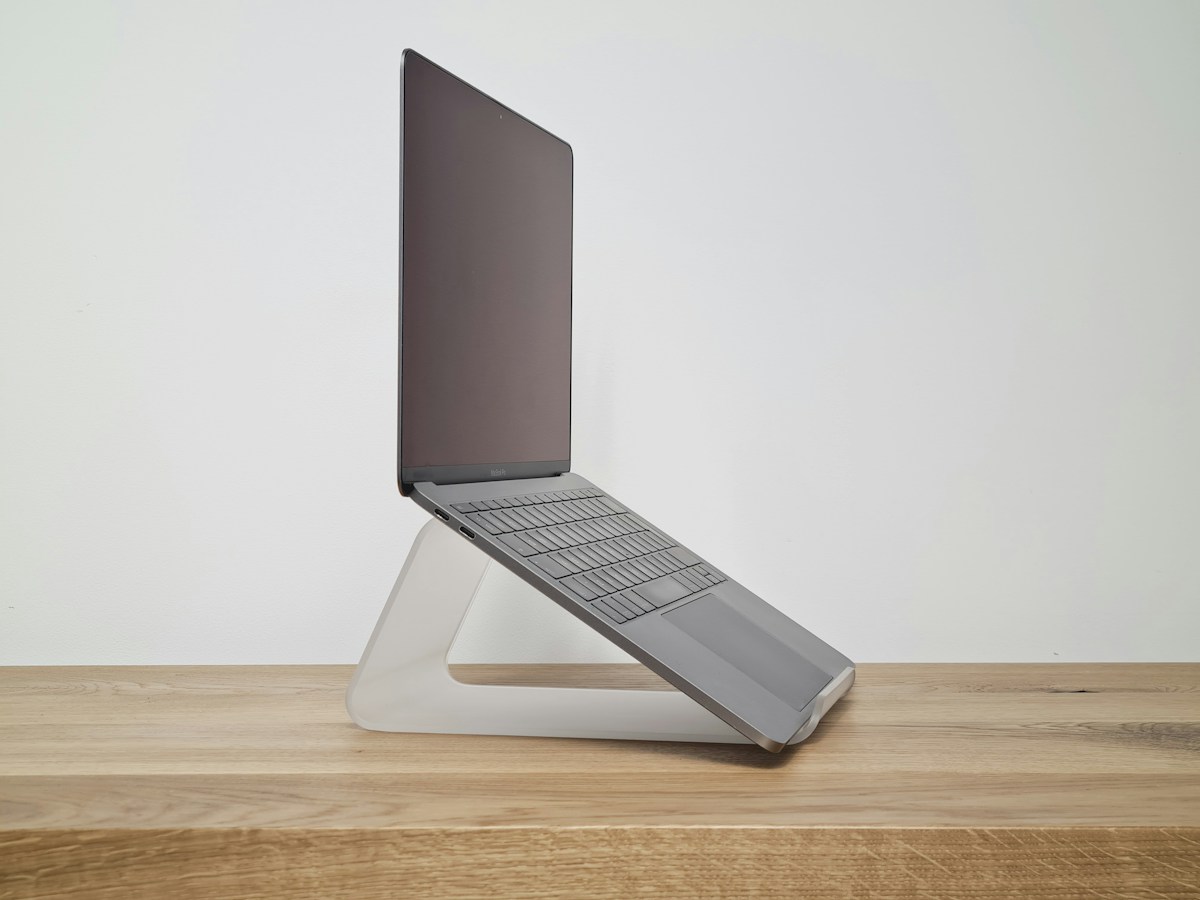
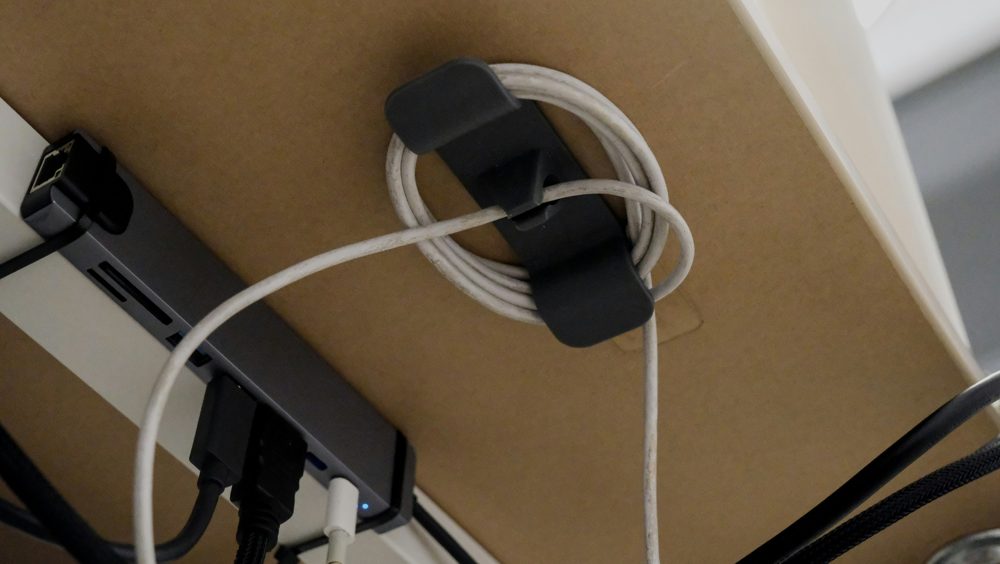
Two monitors mean more cables. A cable sleeve along the arm and a box for the power strip keep things tidy, and a laptop stand raises a closed or open laptop to eye level if you use it as a third screen.